RK平台有一个2D加速器,名字叫做RGA,其主要用来做图片处理的加速,在适配RK3588平台的过程中,有发现一些主板上播放适配卡顿或者不播放。从而定位到是RGA的MMU无法访问4G以上的内存地址空间导致。经排查,通过在ffmpeg中申请4G以内的dma buffer来绕过RGA的硬件缺陷,本文章分享此问题的解题过程
一:问题现象
在使用ffplay播放视频的时候,会出现如下问题
[ 719.046159] rga2 fdb80000.rga: swiotlb buffer is full (sz: 278528 bytes), total 32768 (slots), used 591 (slots)
[ 719.047045] rga_dma_buf: Failed to map src attachment
[ 719.047491] rga_mm: rga_mm_map_dma_buffer core[4] map dma buffer error!
[ 719.048090] rga_mm: rga_mm_map_buffer map dma_buf error!
[ 719.048556] rga_mm: job buffer map failed!
[ 719.048914] rga_mm: src channel map job buffer failed!
[ 719.048915] rga_job: rga_job_run: failed to map buffer
[ 719.049996] rga_job: some error on rga_job_run before hw start, rga_job_next(343)
[ 719.050652] rga_job: some error on job, rga_job_commit(668)
[ 719.051140] rga_job: failed to commit job!
[ 719.051509] rga: rga_request_commit failed
将内核升级后,得到如下错误
Nov 24 14:14:35 Kylin kernel: [85438.014740] rga_mm: RGA_MMU unsupported Memory larger than 4G!
Nov 24 14:14:35 Kylin kernel: [85438.014772] rga_mm: scheduler core[4] unsupported mm_flag[0x0]!
Nov 24 14:14:35 Kylin kernel: [85438.014848] rga_mm: rga_mm_map_buffer iommu_map virtual address error!
Nov 24 14:14:35 Kylin kernel: [85438.014859] rga_mm: job buffer map failed!
Nov 24 14:14:35 Kylin kernel: [85438.014869] rga_mm: dst channel map job buffer failed!
Nov 24 14:14:35 Kylin kernel: [85438.014878] rga_mm: failed to map buffer
Nov 24 14:14:35 Kylin kernel: [85438.014894] rga_job: rga_job_commit: failed to map job info
Nov 24 14:14:35 Kylin kernel: [85438.014969] rga_job: request[1] task[0] job_commit failed.
Nov 24 14:14:35 Kylin kernel: [85438.014981] rga_job: rga request commit failed!
Nov 24 14:14:35 Kylin kernel: [85438.014992] rga: request[1] submit failed!
从而导致3588上播放视频性能低下
二:分析
2.1 根据日志简单解析
从日志 Failed to map src attachment 可以看定位代码地址
drivers/video/rockchip/rga3/rga_dma_buf.c
sgt = dma_buf_map_attachment(attach, dir);
 if (IS_ERR(sgt)) {
 pr_err("Failed to map src attachment\n");
 ret = -EINVAL;
 goto err_get_sgt;
 }
并且通过日志 RGA_MMU unsupported Memory larger than 4G 可以发现RGA MMU确实存在此硬件问题
2.2 跟踪ffplay代码
ffplay为ffmpeg的播放测试程序,视频经过ffplay播放,会通过libavcodec做真正的硬解码动作,其代码位置为 libavcodec/rkmppdec.c
经过定位
if (avctx->pix_fmt != AV_PIX_FMT_DRM_PRIME) {
 ret = rkmpp_convert_frame(avctx, frame, mppframe, buffer);
 goto out;
 }
这里判断了pix fmt类型,如果不是DRM_PRIME类型,则主动通过mpp进行帧的转换
avctx->pix_fmt = ff_get_format(avctx, avctx->codec->pix_fmts);
帧格式通过ffmpeg的api获取
这里默认会拿到YCbCr_420_SP的视频格式,但是AV_PIX_FMT_DRM_PRIME默认格式为RK_FORMAT_YCbCr_420_P。所以视频过来的每一帧都需要进行 420sp-→420p的格式转换
这个转换通过两种方式,如果rga不支持,则通过软件转换,如下
for (i = 0; i < frame->height / 2; i++) {
 for (j = 0; j < frame->width; j++) {
 dst_u[j] = src[2 * j + 0];
 dst_v[j] = src[2 * j + 1];
 }
 dst_u += u_pitch;
 dst_v += v_pitch;
 src += hstride;
 }
如果rga支持,则通过rga的api 加速转换
c_RkRgaBlit(&src_info, &dst_info, NULL)
2.3 基本推断
从上面的信息可以判断,rgaBlit的失败,会导致内核出错,并且每一帧的视频输出格式都通过cpu来计算,从而导致播放卡顿
根据c_RkRgaBlit 的两个参数,结合/usr/include/rga/drmrga.h 的struct rga_info 定义,可以看到 void *virAddr 是rga内部使用的内存地址
根据分析rga源码,从而得到如下为rga内部使用的内存地址
src_info.fd = mpp_buffer_get_fd(buffer);
dst_info.virAddr = dst_y;
2.4 跟踪代码
跟踪mpp的代码可以知道,mpp的buffer通过如下申请
ret = mpp_buffer_group_get_internal(&decoder->frame_group, MPP_BUFFER_TYPE_DRM);
获取mpp源码 mpp_1.5.0-1.tar.gz 分析代码,可以发现
osal/linux/os_allocator.c 的 MPP_RET os_allocator_get(os_allocator *api, MppBufferType type) 作为所有的mpp的buffer的申请器
其支持的申请方式如下:
MPP_BUFFER_TYPE_NORMAL    malloc申请

MPP_BUFFER_TYPE_ION            android的ion申请

MPP_BUFFER_TYPE_DRM           通过drm设备"/dev/dri/card0"申请
这里可以发现,当前版本的mpp内存申请方式,都没有对内存的实际地址进行判断,也就是有可能在rga的mmu访问的时候,实际内存可能大于4G内存
而在内核内,有申请dma32的堆的驱动drivers/dma-buf/heaps/
打开 DMABUF_HEAPS_SYSTEM 重编译内核,替换内核后重启,可以看到dma的申请设备
/dev/dma_heap/system /dev/dma_heap/system-uncached
/dev/dma_heap/system-dma32 /dev/dma_heap/system-uncached-dma32
对应的,要使用dma32,可以借鉴rk的使用例子。代码在linux-rga源码
samples/im2d_slt/sources/dma_alloc.cpp
通过合入patch的方式,可以为mpp增加一个dma heap的内存申请方式。可以参考commit 如下
https://gitlab2.kylin.com/shanghai-team/mpp/-/commit/3ed4d85d6ba174575e7bd0fe0cc6b29f4d54c9ee
2.5 运行测试
将支持dma heap申请的mpp编译后,安装在系统上,进入调试状态,
export mpp_rt_debug=1 && ffplay /data/bbb_sunflower_2160p_60fps_normal.mp4
在另一个窗口监听syslog 如下
tail -f /var/log/syslog | grep mpp_rt
通过日志可以发现,在播放视频时,mpp这边的buffer已经正常的通过heap的方式申请
Nov 24 16:52:38 Kylin mpp[999038]: mpp_rt: use dma heap allocator
通过sysfs也可以看到dma buffer已经申请成功
cat /sys/kernel/debug/dma_buf/bufinfo
04177920 00000002 00080007 00000002 system-uncached-dma32 03377282 1002674-ffplay
 Attached Devices:
 fdc38100.rkvdec-core
Total 1 devices attached
但是MMU 4G的问题还是存在
2.6 rga的dest buffer
至此mpp buffer这边已经正常的通过dma去申请了。而rga这边的buffer还是有问题的,继续翻阅ffmpeg的代码,可以找到
rkmppdec.c

if (avctx->pix_fmt != AV_PIX_FMT_DRM_PRIME) {
 ret = ff_get_buffer(avctx, frame, 0);
 if (ret < 0)
 goto out;
 }
可以发现,rga的dest buffer通过ffmpeg的标准接口申请,跟踪代码可知,内存的申请通过av_malloc
故,为了解决rga这边的内存问题,需要也通过dma去申请
申请如下:
ret = ioctl(buf->fd, DMA_HEAP_IOCTL_ALLOC, buf->alloc_info);
 if (ret < 0) {
 av_log(avctx, AV_LOG_ERROR, "Failed to alloc rga dst dma buffer\n");
 goto out;
 }
 if (fcntl(buf->alloc_info->fd, F_GETFL) & O_RDWR)
 prot |= PROT_WRITE;
 buf->buf_ptr = mmap(NULL, MAX_FRAMESIZE, prot, MAP_SHARED, buf->alloc_info->fd, 0);
 if (buf->buf_ptr == MAP_FAILED) {
 av_log(avctx, AV_LOG_ERROR, "Failed to mmap dma buffer.size=%d: %s\n", MAX_FRAMESIZE, strerror(errno));
 goto out;
 }
由此,可以得到一个buf→buf_ptr 的 MAX_FRAMESIZE (819281924) 的内存地址
然后将此地址提供给每个帧buffer上,如下
 frame->data[0] = decoder->dma_buf->buf_ptr;
 frame->data[1] = frame->data[0] + frame->linesize[0]*mpp_frame_get_ver_stride(mppframe);
 frame->data[2] = frame->data[1] + frame->linesize[1]*mpp_frame_get_ver_stride(mppframe)/2;
此计算是为了满足如下公式
u_pitch == y_pitch / 2
v_pitch == y_pitch / 2
dst_u == dst_y + y_pitch * dst_height
dst_v == dst_u + u_pitch * dst_height / 2
而 frame->data[0] 即 dst_info.virAddr = dst_y;
由此,rga这边的buffer也是dma申请的。
root@kylin:/sys/kernel/debug/dma_buf# cat bufinfo | grep 268435456 -A 3
268435456 00000002 00080007 00000002 system-uncached-dma32 03444815 1029285-ffplay
 Attached Devices:
Total 0 devices attached
这里可以看到 268435456 = MAX_FRAMESIZE 已经正常申请
patch地址为
https://gitlab2.kylin.com/shanghai-team/FFmpeg/-/commit/9fbfadb6f185e73b2140b5ff063ef2445897b301
2.7 权限
ffplay因为要通过dma去申请,这里需要满足权限
需要复制给dma heap 一个777 的最大权限,确保应用正常使用堆
chmod -R 777 /dev/dma_heap/
三:自测结果
通过播放视频,查看rga的使用率,确定rga正常使用,视频播放不卡顿。如下
watch -n 1 cat /sys/kernel/debug/rkrga/load
Every 1.0s: cat /sys/kernel/debug/rkrga/load kylin: Thu Nov 24 17:20:31 2022
num of scheduler = 3
================= load ==================
scheduler[0]: rga3_core0
 load = 0%
-----------------------------------
scheduler[1]: rga3_core1
 load = 0%
-----------------------------------
scheduler[2]: rga2
 load = 22%
-----------------------------------
 process 1: pid = 1033010, name: ffplay /data/bbb_sunflower_2160p_60fps_normal.mp4
这里可以确定,当前视频通过ffplay播放,走的rga2加速。4K的视频源,rga使用率在20-30%。
通常需要一些技巧抓取应用日志,下面列举一下方法抓取一些通用的日志来判断系统问题
一:常用日志方式
显示管理器lightdm	 tail -f /var/log/lightdm/lightdm.log
显示服务器Xorg	 tail -f /var/log/Xorg.0.log
窗口管理器ukui-kwin	 tail -f /home/kylin/.log/ukui_kwin_0.log
系统全局的日志	       tail -f  /var/log/syslog
系统session启动日志	tail -f  /home/kylin/.config/ukui-session/ukui-session-xsmp.log
系统自启动图形的错误日志	tail -f /home/kylin/.xsession-errors
系统启动默认设置的日志	taif -f /home/kylin/.log/usd/MON.log (以日期命名)
应用的系统调用日志	strace -p `pidof XXX`
应用的标准输出日志(未重定向)	tail -f  /proc/`pidof XXX`/fd/2
查看系统统计的日志	journalctl -r
二:找到应用的日志
对于一些应用程序,我们不清楚他在哪里输出了日志,可以使用如下方法来找到应用的日志文件
strace -p `pidof XXX` 2>&1 | grep "openat\|faccessat"
解释一下:这里从系统调用出发,找到进程正在打开和正在准备进入的文件。如果是openat,则日志文件一定存在,如果是faccessat,则日志文件因为权限问题无法写入。
如果应用程序没有日志输出到文件,那么日志只会默认在fd2上,也就是标准输出,如下可以看到日志
tail -f /proc/`pidof XXX`/fd/2
三:Qt的日志
对于Qt的日志,均通过QDebug来实现,但是QDebug并不是都能正常输出,通常我们需要结合《二》,并添加Qt的配置来正常打开qDebug输出。方法如下:
1,判断源码文件是否打开QDebug
确定源文件是否有 #include ,如果没有,qDebug不会输出
2, 判断代码编译是否有宏QT_DEBUG
如果编译过程中,出现宏QT_NO_DEBUG,则代码qDebug并不会输出。则需要修改源码pro文件或cmakefile或makefile等,设置编译为debug,或者手动添加QT_DEBUG宏,例如:
CONFIG(debug ,debug|release){
 DEFINES -= QT_NO_DEBUG_OUTPUT
}else{
 DEFINES += QT_NO_DEBUG_OUTPUT
}
这里设置去掉宏QT_NO_DEBUG_OUTPUT,当然直接打开QT_DEBUG宏也可以
3, 判断日志到文件还是标准输出
确定代码是否使用 qInstallMessageHandler。如使用,日志默认到文件,如未使用,日志默认到标准输出
确定方法如上述第二章节
4, 日志过滤
一些Qt使用了QLoggingCategory来管理日志,对应的qt日志api的日志并不会显示,这时候需要配置环境变量来打开日志。如下
export QT_LOGGING_RULES="*.debug=true;qt.*.debug=false"
当然,可以按照自己的规则来过滤,主要参考代码。例如ukui-kwin可以如下:
export QT_LOGGING_RULES="kwin_libinput*=true;"
这样可以看到kwin相关libinput的日志
5,已有工程的qDebug日志
/usr/share/glib-2.0/schemas/org.ukui.log4qt.gschema.xml
修改为false 和 DEBUG 和 DEBUG,daily
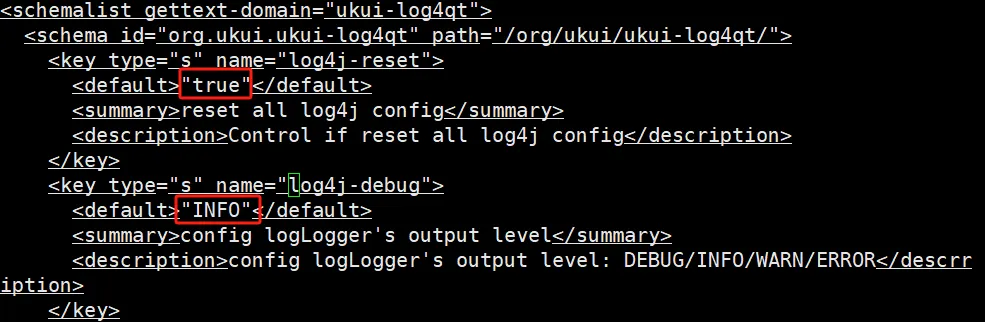

修改后,重编译glib schemas即可
glib-compile-schemas /usr/share/glib-2.0/schemas/
四:全局日志
因为Qt的日志太过复杂,我们通常在release版本上调试代码,但是反复修改配置太累,为了让调试日志更加容易,可以使用syslog,它简单好用,用完随即可删。主要使用步骤如下:
先在代码中引入syslog头文件
#include <syslog,h>
如果为了日志单独使用一个文件,可以如下,否则默认日志文件在/var/log/syslog
void openlog (char*ident, int option, int facility);
设置日志等级
#define LOG_EMERG 0 /* system is unusable */
#define LOG_ALERT 1 /* action must be taken immediately */
#define LOG_CRIT 2 /* critical conditions */
#define LOG_ERR 3 /* error conditions */
#define LOG_WARNING 4 /* warning conditions */
#define LOG_NOTICE 5 /* normal but significant condition */
#define LOG_INFO 6 /* informational */
#define LOG_DEBUG 7 /* debug-level messages */
打印
syslog(LOG_DEBUG, "[%s] xxxx failed", __func__);
抓
tail -f /var/log/syslog
在Linux系统中,strace命令是一个集诊断、调试、统计与一体的工具,可用来追踪调试程序,能够与其他命令搭配使用,接下来就Linux系统调用工具strace的使用方法和实践给大家做个详细介绍,一起来了解下strace的操作实例吧。
一、场景
1、在操作系统运维中会出现程序或系统命令运行失败,通过报错和日志无法定位问题根因。
2、如何在没有内核或程序代码的情况下查看系统调用的过程。
说明
1、strace是有用的诊断,说明和调试工具,Linux系统管理员可以在不需要源代码的情况下即可跟踪系统的调用。
2、strace显示有关进程的系统调用的信息,这可以帮助确定一个程序使用的哪个函数,当然在系统出现问题时可以使用 strace定位系统调用过程中失败的原因,这是定位系统问题的很好的方法。
参数解析
strace安装方法:
# apt-get install strace –y
strace的常用参数及示例
-c
统计每一系统调用的所执行的时间,次数和出错的次数等。
示例:打印执行uptime时系统系统调用的时间、次数、出错次数和syscall
# strace -c uptime
-d
显示有关标准错误的strace本身的一些调试输出。
-f
跟踪子进程,这些子进程是由于fork(2)系统调用而由当前跟踪的进程创建的。
-i
在系统调用时打印指令指针。
-t
跟踪的每一行都以时间为前缀。
-tt
如果给出两次,则打印时间将包括微秒。
-ttt
如果给定三次,则打印时间将包括微秒,并且前导部分将打印为自该XX以来的秒数。
-T
显示花费在系统调用上的时间。这将记录每个系统调用的开始和结束之间的时间差。
-v
打印环境,统计信息,termios等调用的未缩写版本。这些结构在调用中非常常见,因此默认行为显示了结构成员的合理子集。使用此选项可获取所有详细信息。
-V
打印strace的版本号。
-e expr
限定表达式,用于修改要跟踪的事件或如何跟踪它们:
-e trace=set
仅跟踪指定的系统调用集。该-c选项用于确定哪些系统调用可能是跟踪有用有用。例如,trace=open,close,read,write表示仅跟踪这四个系统调用。
-e trace=file
跟踪所有以文件名作为参数的系统调用。
示例:打印执行ls时跟文件有关的系统调用。
# strace -e trace=file ls
-e trace=process
跟踪涉及过程管理的所有系统调用。这对于观察进程的派生,等待和执行步骤很有用。
-e trace=network
跟踪所有与网络相关的系统调用。
-e trace=signal
跟踪所有与信号相关的系统调用。
-e trace=ipc
跟踪所有与IPC相关的系统调用。
-o 文件名
将跟踪输出写入文件名而不是stderr。
-p pid
使用进程ID pid附加到该进程并开始跟踪。跟踪可以随时通过键盘中断信号(CTRL -C)终止。
-S
按指定条件对-c选项打印的直方图输出进行排序。
示例:打印执行uname系统调用中calls的次数排序
# strace -fc -S calls uname
注:其他参数可以查看man手册
# man strace
使用实践
以“定位一次系统无法解析域名故障”为例
问题现象
无法访问外网域名,提示Name or service not know。
且已检查系统DNS配置文件/etc/resolv.conf正确,排除DNS解析失败。
问题分析
当前无法确定系统在执行 解析域名失败的原因,这时候需要使用strace查看系统调用过程,域名解析通常跟系统读取文件相关,因此我们只查看open file的过程。具体命令如下:
# strace -e strace=open ping www.baidu.com
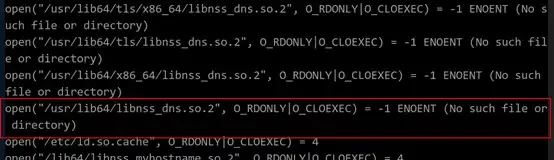
如上图所示在系统调用过程中出现/usr/lib64/libnss_dns.so.2文件缺失,则问题根因已确定为libnss_dns.so.2系统库文件缺失。
解决方法:
libnss_dns.so.2文件由glibc dev包产生,因此重新安装该包即可,请执行
一、前言
在音频开发中,窗体多半为半透明、圆角窗体,如下为Qt 5.5 VS2013实现半透明方法总结。
二、半透明方法设置
2.1 窗体及子控件都设置为半透明
-
setWindowOpacity(0.8);//参数范围为0-1.0,通过QSlider控件做成透明度控制条 -
无边框设置
setWindowFlags(Qt::FramelessWindowHint); -
窗体圆角设置
setAttribute(Qt::WA_TranslucentBackground);
  通过paintEvent绘制窗体背景色与圆角
  void Widget::paintEvent(QPaintEvent *event)
  {
    QPainter painter(this);
    painter.setRenderHint(QPainter::Antialiasing); // 反锯齿;
    painter.setBrush(QBrush(QColor("#616F76")));  //窗体背景色
    painter.setPen(Qt::transparent);
    QRect rect = this->rect();        //rect为绘制大小
    rect.setWidth(rect.width() - 1);
    rect.setHeight(rect.height() - 1);
    painter.drawRoundedRect(rect, 15, 15);  //15为圆角角度
    //也可用QPainterPath 绘制代替 painter.drawRoundedRect(rect, 15, 15);
    //QPainterPath painterPath;
    //painterPath.addRoundedRect(rect, 15, 15);//15为圆角角度
    //painter.drawPath(painterPath);
    QWidget::paintEvent(event);
  }
2.2、通过图片贴图,设置局部透明
- 窗体设置
setAttribute(Qt::WA_TranslucentBackground);//背景半透明属性设置
setWindowFlags(Qt::FramelessWindowHint);//无边框窗体设置
- 采用样式加载图片
ui->m_BgWidget->setStyleSheet("background-image:url(:/images/bg.png);");
注意:m_BgWidget为窗体对象的子窗体,不能直接设置QWidget
- 效果图如下

2.3 通过paintEvent重绘背景色透明度
- 窗体属性设置
setAttribute(Qt::WA_TranslucentBackground);//背景半透明属性设置
  setWindowFlags(Qt::FramelessWindowHint);//无边框窗体设置
  m_BgColor = QColor("#616F76");//默认背景色
  m_BgColor.setAlphaF(0.8);
  this->setContextMenuPolicy(Qt::CustomContextMenu);
  connect(this, SIGNAL(customContextMenuRequested(const QPoint &)),
      this, SLOT(showContextMenuSlot(const QPoint &)));//右击出现菜单
- 右击出现菜单
void Widget::showContextMenuSlot(const QPoint &pos)
  {
    QAction *act = NULL;
    if(NULL == m_Menu)
    {
      m_Menu = new QMenu();//菜单
      m_Actions.clear();//记录所有Action
      act = m_Menu->addAction("1.0", this, SLOT(funcSlot()));
      m_Actions << act;
      act->setCheckable(true);
      act = m_Menu->addAction("0.8", this, SLOT(funcSlot()));
      m_Actions << act;
      act->setCheckable(true);  //设置可选中
      act->setChecked(true);  //设置被选中
      act = m_Menu->addAction("0.5", this, SLOT(funcSlot()));
      m_Actions << act;
      act->setCheckable(true);
      act = m_Menu->addAction("0.3", this, SLOT(funcSlot()));
      m_Actions << act;
      act->setCheckable(true);
      act = m_Menu->addAction("0.1", this, SLOT(funcSlot()));
      m_Actions << act;
      act->setCheckable(true);
    }
    m_Menu->exec(mapToGlobal(pos));//弹出菜单
  }
- 选择菜单Action,修改背景颜色透明度
void Widget::funcSlot()
  {
    QAction *act = qobject_cast<QAction *>(sender());//获取选中的Action
    if(act)
    {
      double alpha = act->text().toDouble();
      m_BgColor.setAlphaF(alpha);//背景色透明度修改
      foreach(QAction *action, m_Actions)//去除其余选中,互斥
      {
        if(act != action)
          action->setChecked(false);
      }
      this->update();//刷新界面
    }
  }
- 通过paintEvent重绘背景色
void Widget::paintEvent(QPaintEvent *event)
  {
    QPainter painter(this);
    painter.setRenderHint(QPainter::Antialiasing); // 反锯齿;
    painter.setBrush(QBrush(m_BgColor));//修改后的背景色
    painter.setPen(Qt::transparent);
    QRect rect = this->rect();      //rect为绘制窗体大小
    rect.setWidth(rect.width() - 1);
    rect.setHeight(rect.height() - 1);
    painter.drawRoundedRect(rect, 15, 15);//15为圆角角度
    //也可用QPainterPath 绘制代替 painter.drawRoundedRect(rect, 15, 15);
    //QPainterPath painterPath;
    //painterPath.addRoundedRect(rect, 15, 15);
    //painter.drawPath(painterPath);
    QWidget::paintEvent(event);
  }
-
效果如下

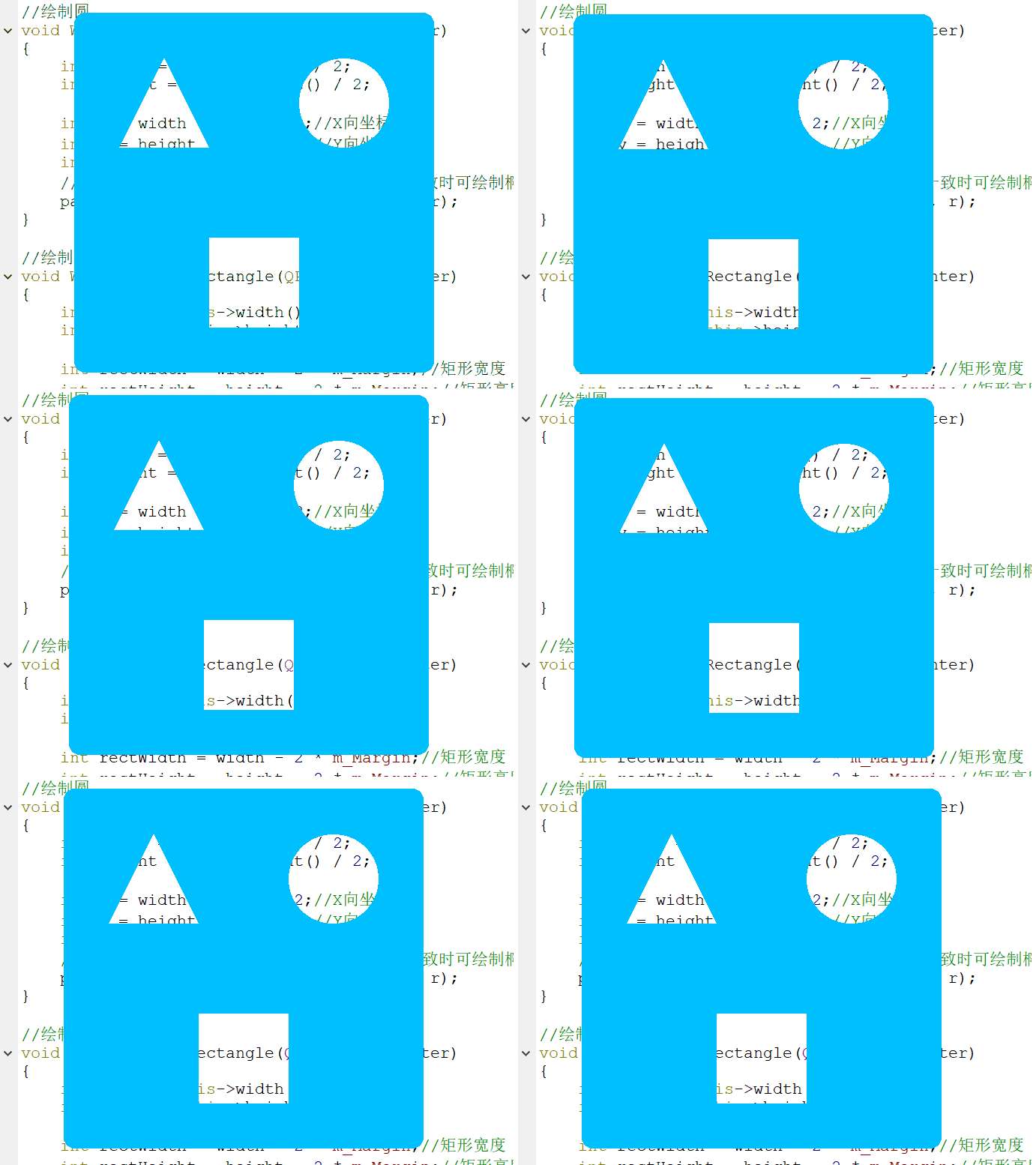
2.4 通过paintEvent采用Clear模式绘图,实现局部透明
- 窗体属性设置
m_Margin = 60;//各个绘制图形与边框的距离
  m_BgColor = QColor("#00BFFF");//窗体背景色
  installEventFilter(this);//事件过滤器,用于鼠标按下后界面移动
  setWindowFlags(Qt::FramelessWindowHint);//无边框窗体设置
  setAttribute(Qt::WA_TranslucentBackground);//背景半透明属性设置
- 画笔属性设置
void Widget::paintEvent(QPaintEvent *)
  {
    QPainter painter(this);
    painter.setPen(Qt::NoPen);
    painter.setBrush(m_BgColor);
    painter.drawRoundedRect(this->rect(), 15, 15);//设置整体窗体圆角为15°
    painter.setCompositionMode(QPainter::CompositionMode_Clear);//设置Clear绘图模式
    //绘制三角形
    drawTriangle(&painter);
    //绘制圆
    drawCircular(&painter);
    //绘制矩形
    drawRectangle(&painter);
  }
- 绘制三角形
void Widget::drawTriangle(QPainter *painter)
  {
    QPainterPath path;
    int width = this->width() / 2;
    int height = this->height() / 2;
    //顶点
    int topX = width / 2;
    int topY = m_Margin;
    //左下顶点
    int leftX = m_Margin;
    int leftY = height - m_Margin;
    //右下顶点
    int rightX = width - m_Margin;
    int rightY = height - m_Margin;
    path.moveTo(topX, topY);//起点
    path.lineTo(leftX, leftY);//画线段1
    path.lineTo(rightX, rightY);//画线段2
    path.lineTo(topX, topY);//画线段3
    painter->fillPath(path, QBrush(m_BgColor));//绘制三角形
  }
- 绘制圆
void Widget::drawCircular(QPainter *painter)
  {
    int width = this->width() / 2;
    int height = this->height() / 2;
    int x = width + width / 2;//X向坐标
    int y = height / 2; //Y向坐标
    int r = width / 2 - m_Margin;
    //第一个参数为中心点,r为x向、y向长度(不一致时可绘制椭圆)
    painter->drawEllipse(QPoint(x, y), r, r);
  }
- 绘制矩形
void Widget::drawRectangle(QPainter *painter)
  {
    int width = this->width() / 2;
    int height = this->height() / 2;
    int rectWidth = width - 2 * m_Margin;//矩形宽度
    int rectHeight = height - 2 * m_Margin;//矩形高度
    int rectX = width - rectWidth / 2;//矩形X向长度
    int rectY = height + m_Margin;//矩形Y向长度
    painter->drawRect(QRect(rectX, rectY, rectWidth, rectHeight));
  }
-
运行效果
一:重写QSplashScreen
#include <QSplashScreen>
#include <QMouseEvent>
class AppSplashScreen : public QSplashScreen
{
    Q_OBJECT
public:
    explicit AppSplashScreen(QPixmap pixmap);
    ~AppSplashScreen();

    void mousePressEvent(QMouseEvent *event);
};

AppSplashScreen::AppSplashScreen(QPixmap pixmap) : QSplashScreen(pixmap)
{
	this->setAttribute(Qt::WA_TransparentForMouseEvents, false);
	this->setWindowFlags(Qt::FramelessWindowHint);
	this->setAttribute(Qt::WA_TranslucentBackground);
}

/* 重写mousePressEvent */
void AppSplashScreen::mousePressEvent(QMouseEvent *event)
{
	return;
}

AppSplashScreen::~AppSplashScreen()
{

}
- 重写mousePressEvent 为了屏蔽鼠标点击事件
- 设置窗口属性:
  this->setAttribute(Qt::WA_TransparentForMouseEvents, false); 设置禁止鼠标事件到父窗口
  this->setWindowFlags(Qt::FramelessWindowHint); 设置窗口无边框
  this->setAttribute(Qt::WA_TranslucentBackground); 设置窗口透明
二:初始化splash
/**
 * @brief 在应用启动过程中附上gif作为开启动画
 */
void MainWindow::InitSplash(void)
{
	int width,height;
	setFixedSize(800, 460);

	splash = new AppSplashScreen(QPixmap(":/png/png/splash.gif").scaled(width, height));
	label = new QLabel(splash);
	mv = new QMovie(":/png/png/splash.gif");

	bool istablet = QGSettings("org.ukui.SettingsDaemon.plugins.tablet-mode").get("tablet-mode").toBool();
	if(istablet == true){
		width = QGuiApplication::primaryScreen()->geometry().width();
		height = QGuiApplication::primaryScreen()->geometry().height();
	}else{
		width = this->width();
		height = this->height();
	}
	splash->setFixedSize(width,height);
	label->setFixedSize(QSize(width , height));
	mv->setScaledSize(label->size());
	QScreen *screen = QGuiApplication::primaryScreen();
	splash->move((screen->geometry().width() - width) / 2,(screen->geometry().height() - height) / 2);

	splash->showMessage(QObject::tr("正在启动程序..."),
				Qt::AlignRight | Qt::AlignTop, Qt::white);

	label->setMovie(mv);
	mv->start();

	if(istablet == true){
		splash->showFullScreen();
	}else{
		splash->show();
	}
	for(int i=0; i<100; i++)
	{
	  qApp->processEvents();
	  QThread::msleep(1);
	}
}
- setFixedSize 设置了父窗体的最大大小和最小大小为 800,460 它相当于设置了setMinimumSize和setMaximumSize都为同一个值
- setScaledSize 将图片缩放大小设置为固定size。也就是这个QLabel的fixedsize
- 为了与应用程序保持一致的位置,需要和应用程序一样,将splash移动到屏幕中间
  QScreen *screen = QGuiApplication::primaryScreen();
  splash->move((screen->geometry().width() - width) / 2,(screen->geometry().height() - height) / 2);
- showMessage 在splash播放的时候,显示文本信息
- 绑定QMovie到QLabel上,并且开始播放gif
  label->setMovie(mv);
  mv->start();
- qApp->processEvents();代表当前的事情不重要,其他线程任务仍继续进行。用于不断刷新splash的事件,从而正常播放gif动画这里故意循环了100次,msleep1,也就意味着,当前至少100ms用于播放动画。然后再继续处理其他事情
- 综合上面代码,initsplash过程中,初始化和播放了一个gif,并且让他默认走了100ms。
三:销毁SplashScreen
/**
 * @brief 销毁new出来的 QMovie QLabel AppSplashScreen
 */
void MainWindow::DestorySplash(void)
{
	splash->finish(this);
	delete mv;
	mv = NULL;
	delete label;
	label = NULL;
	delete splash;
	splash = NULL;
}
四:让动画继续播放
/**
 * @brief 不断设置动画消息
 */
void MainWindow::SplashShowmsg(const QString msg)
{
	label->setMovie(mv);
	mv->start();
	Qt::Alignment topRight = Qt::AlignRight | Qt::AlignTop;
	splash->showMessage(msg,topRight, Qt::white);
	for(int i=0;i<10;i++)
	{
		qApp->processEvents();
		splash->repaint();
	}
}
五:如何调用动画
MainWindow::MainWindow(QStringList str,QWidget *parent)
    :QWidget(parent)
{
        mainWid = new QWidget();
	InitSplash();
        /* 主界面做其他事情 */
        mainWid->show();
	DestorySplash();
}
总结:
上面描述了如何设置一个QSplashScreen,从而让你的程序开启时出现动画效果。但对于效率来说,它为了绘制动画做了很多不必要的sleep和repaint/show。